
Make presentations with Opus 5.5: research, charts, layouts, and editable delivery
Use Opus 5.5 to structure presentation materials, plan charts, and create a consistent design, while understanding the delivery differences between PPTX, Google Slides, HTML, and PDF.

Making presentations with Opus 5.5 can cover organizing material, structuring slides, creating charts, and arranging visual layouts. Start in an environment that supports file generation and previews, and confirm whether you need PPTX, Slides, or HTML. The presentation's purpose, available facts, and delivery format shape the result more than asking for “something more polished.”
Anthropic's Opus 5.5 announcement shows work that goes from analyzing materials to executive presentations. In practice, ask it to plan what each slide needs to say before building the deck gradually. A fictional community tool-sharing project below illustrates the full process.
Define the audience and the action you want
The same project materials serve different purposes. Residents need to know how to borrow tools; potential partners need to understand how the service works and what support it needs. Write a one-sentence objective first, such as “Introduce the tool-sharing plan to community leaders and seek a pilot in one neighborhood.”
Next, prepare the original description, confirmed data, logo or palette, and wording that must be retained. Separate facts, plans, and unconfirmed items. An event you plan to run must not be described as completed, and interested people must not be counted as actual users.
If the materials are incomplete, ask Opus 5.5 to list the gaps first. Processes, scenarios, and comparisons can explain a proposal without numbers. There is no need to invent a growth chart that merely looks complete.
Confirm the slide structure before designing the whole deck
Ask first for a slide-by-slide outline with titles, main conclusions, and required materials. A six-slide project introduction might be organized like this:
- Cover: explain the project in one sentence.
- Need: why residents need it.
- Proposal: which tools can be shared.
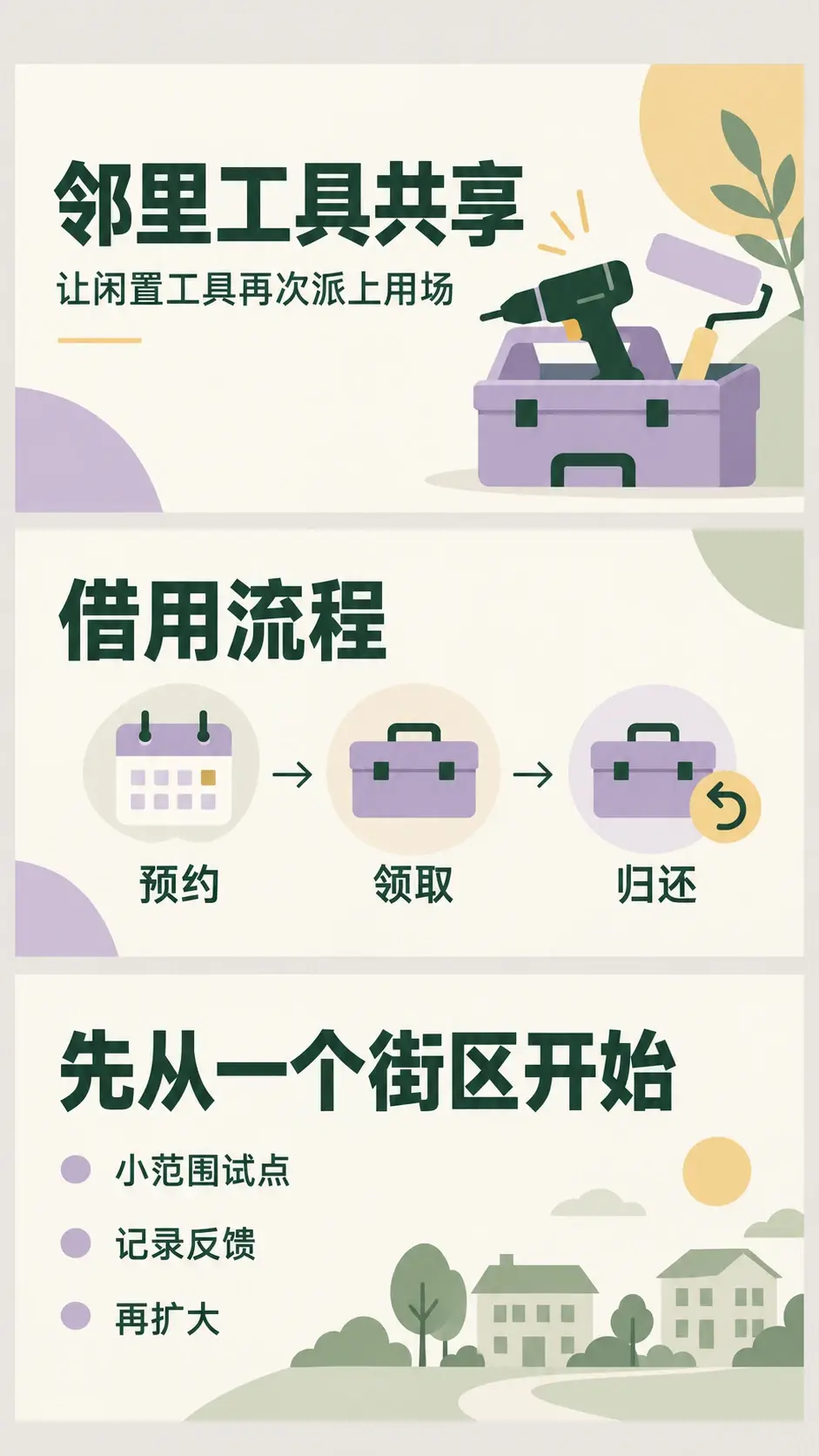
- Process: how to book, collect, and return tools.
- Pilot: where to start and how to gather feedback.
- Next steps: what the audience needs to confirm.
Before designing, check for repetition between adjacent slides, evidence for each conclusion, and a clear action at the end. Split a slide that combines background, rules, and budget. Merge an empty slogan slide into relevant content.
The following static design concept shows three of those slides: a cover that identifies the topic, a content slide that explains the process, and a conclusion that brings the action into focus.
Use charts to answer questions and design to establish order
When you have numbers, explain what the chart should answer first. Use a bar chart to compare items, a line chart to show change over time, and a flowchart for ordered steps. Without reliable data, do not invent proportions to look professional.
Supply the data table and units together and require every chart entry to match. Check percentage denominators, time ranges, missing values, and the vertical axis baseline rather than judging only whether the chart looks attractive. When readers need to compare exact values, keep labels clear and avoid excessive 3D decoration.
Unify heading levels, body text sizes, colors, icons, and margins first. A dense slide can use a different layout while still looking like part of the same deck. One accent color throughout usually establishes reading order more clearly than a different attention-grabbing color on every slide.
Include content, design, and delivery in the prompt
Start with this short brief and substitute your own project materials:
Using the attachments, create a six-slide “Neighborhood tool sharing” presentation for community leaders.
The goal is to seek a small pilot, not to claim the project has already succeeded.
First provide each slide's title, main conclusion, needed charts, and missing materials. Wait for my confirmation before layout work.

Use only facts from the attachments. Mark unsupported figures as needing information.
Use off-white, dark green, and a small amount of pale purple, with consistent typography hierarchy, icons, and margins.
Explain booking, collection, and returns with a flowchart. Do not invent statistical charts.

Deliver a presentation file I can continue editing, along with a PDF preview.
First explain the format you will deliver and which text, shapes, and charts can be edited individually.
Once the first draft is ready, aim each revision at one slide and one issue. “Keep slide four's process order, shorten each step's description, and give the icons more space” is more likely to preserve approved content than “Make the whole thing prettier.”
Before delivery, distinguish PPTX, Slides, and HTML
PPTX works for continued editing in PowerPoint, but a file extension does not prove that every element is editable. Select text, shapes, and charts to check whether they are separate objects or one flattened image.
Google Slides suits team collaboration. Conversion may preserve editable text while turning icons or complex charts into images. Letter spacing and line breaks may also change, so inspect the final slides.
HTML presentations play in a browser and can include slide navigation and motion. They can display a slide deck but need a separate conversion to be used as PPTX. PDF is useful for previewing and distributing a deck; it does not replace editable source files.
Finally, open the file in the software your recipient will actually use. Check font substitution, overflowing text, chart labels, and missing assets. Keep the original materials, editable file, and preview together so the next revision has a clear starting point.