

AI Social Media Generator
Turn a topic or article into a cover and a sequence of social visuals. Give each page a clear message and a consistent visual style.
Create a Black Friday social media campaign
Use your product photos, logo and confirmed offer to plan a launch post, a Story variation and a final-reminder visual in one consistent style.
Start with this campaign brief
Create a Black Friday social visual set for [brand] using the attached product photos and logo. Audience: [audience]. Offer: [confirmed offer], valid [start] to [end and time zone], for [eligible products]. Make one feed post, one Story variation and one final-reminder visual in [required sizes]. Keep the product appearance, logo and offer wording consistent. Make the offer and deadline legible at phone size. Develop the opening post first; after I confirm its direction, adapt the other layouts. Change only the layout I name in later revisions.
Ideas made for a closer look
View more examplesTurn ideas into posts ready to share, from brand content to everyday stories.
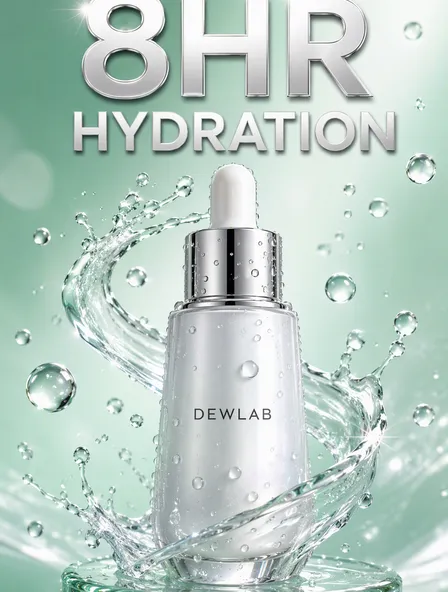
DEWLAB Skincare Video Covers
Create social visuals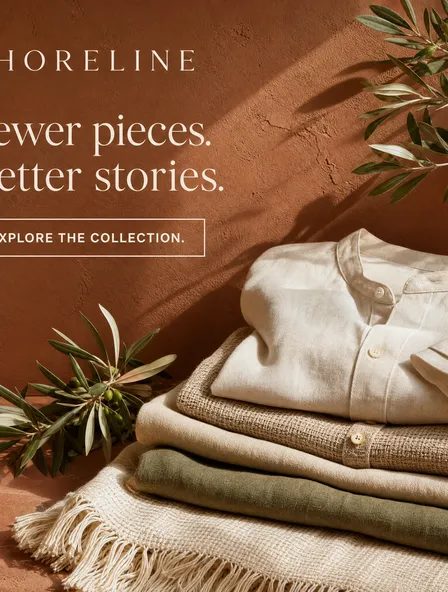
SHORELINE Sustainable Fashion Multi-Platform Campaign
Create social visualsStart from an article
Provide text or an accessible article link to organize into a cover and content pages.
Give each page a purpose
Separate the main message, supporting points and closing page into a readable sequence.
Choose what to create
Ask for a cover, supporting images or a complete image series, and specify text to retain.
Social Media Designer



PagePop
From a brief to a visual direction
- 1
Share your brief
Share the topic or article, audience, intended platform, key message and style references. Say which wording must be preserved.
- 2
Review the design
Review the content sequence and cover direction before refining the individual pages.
- 3
Refine and save
Ask for specific changes in the chat, review the result and save the version you want to use.
Before you get started
What can I create?
Provide text or an accessible article link to organize into a cover and content pages. Separate the main message, supporting points and closing page into a readable sequence. Ask for a cover, supporting images or a complete image series, and specify text to retain.
What should I provide?
Share the topic or article, audience, intended platform, key message and style references. Say which wording must be preserved.
Can I work from existing material?
Yes. You can provide existing text and ask to retain it while developing a new cover or supporting visuals.
What will I receive?
You receive visual content to review and use. For other platforms, clarify the format in the chat; planning platform assets does not automatically publish or synchronize posts.
Can I ask for changes?
Yes. Describe what you want to adjust, such as wording, colors or composition, and continue in the same chat.
How do credits work?
Credit use depends on the task and tools used. Check the current pricing and your account before starting.





Turn your next idea into a visual story
Tell the assistant what you have in mind and start with a clear brief.
Create social visualsMore ways to make it yours
Explore a more specific task with the same starting point.