
Skip to content

Extract text from an image

Turn text in a photo, screenshot or scanned page into text you can copy. Preserve the wording, numbers and structure, and review unclear characters against the original.

Choose a starting brief

Add one clear image and say whether you want plain text or the original table structure. The workspace shows the current supported files and limits.

Explore two image-to-text examples

Copy the text, then check the details

These fictional source images and reference transcriptions were prepared for this example. The reference text was written from the original source; it is not a PagePop extraction result.

To try an example, download its original image, then add it in the workspace. Choosing a brief does not attach the image. Copy preserves the source transcription only; downloaded reference files also include the source-based reference label.

A price table with an optional cost

A clear grayscale scan simulation from an original fictional proposal. Keep the four columns and the excluded item distinct. These are fictional vendor rates, not PagePop prices.
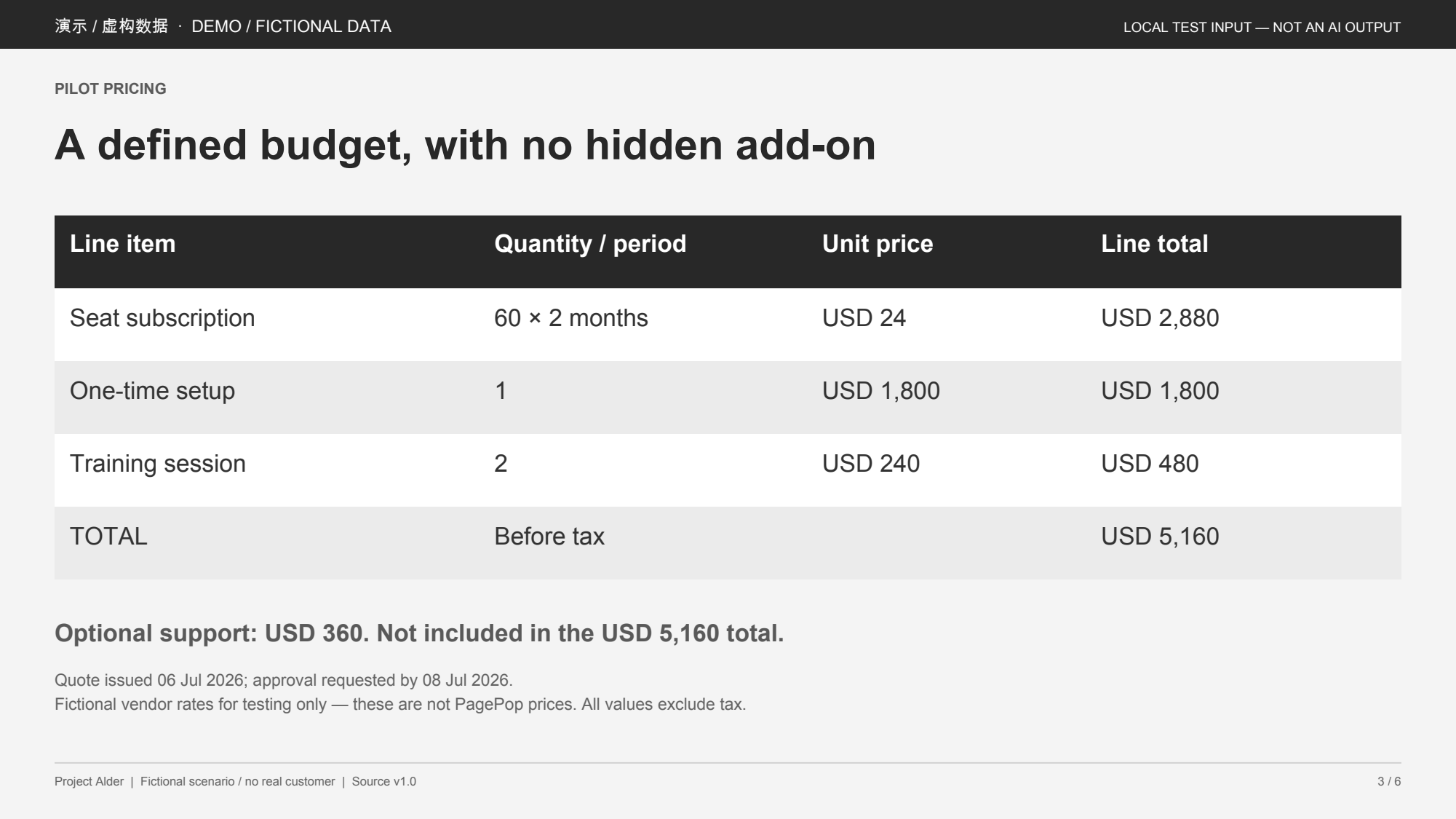
Fictional Project Alder pricing table with a USD 5,160 total and optional USD 360 support excluded.
Download original image

Details to check against the image

Unit price and line total
60 × 2 months at USD 24 produces the stated USD 2,880 line total. Copy the visible values into their original columns.
The optional item stays separate
USD 360 support is not included in the USD 5,160 total. All values exclude tax.
Two different dates
The quote was issued 06 Jul 2026; approval was requested by 08 Jul 2026.

Source-based reference transcription — not a PagePop OCR result.

演示 / 虚构数据  ·  DEMO / FICTIONAL DATA
LOCAL TEST INPUT — NOT AN AI OUTPUT

PILOT PRICING
A defined budget, with no hidden add-on

Line item	Quantity / period	Unit price	Line total
Seat subscription	60 × 2 months	USD 24	USD 2,880
One-time setup	1	USD 1,800	USD 1,800
Training session	2	USD 240	USD 480
TOTAL	Before tax		USD 5,160

Optional support: USD 360. Not included in the USD 5,160 total.

Quote issued 06 Jul 2026; approval requested by 08 Jul 2026.
Fictional vendor rates for testing only — these are not PagePop prices. All values exclude tax.

Project Alder  |  Fictional scenario / no real customer  |  Source v1.0
3 / 6
A target chart with labels and conditions

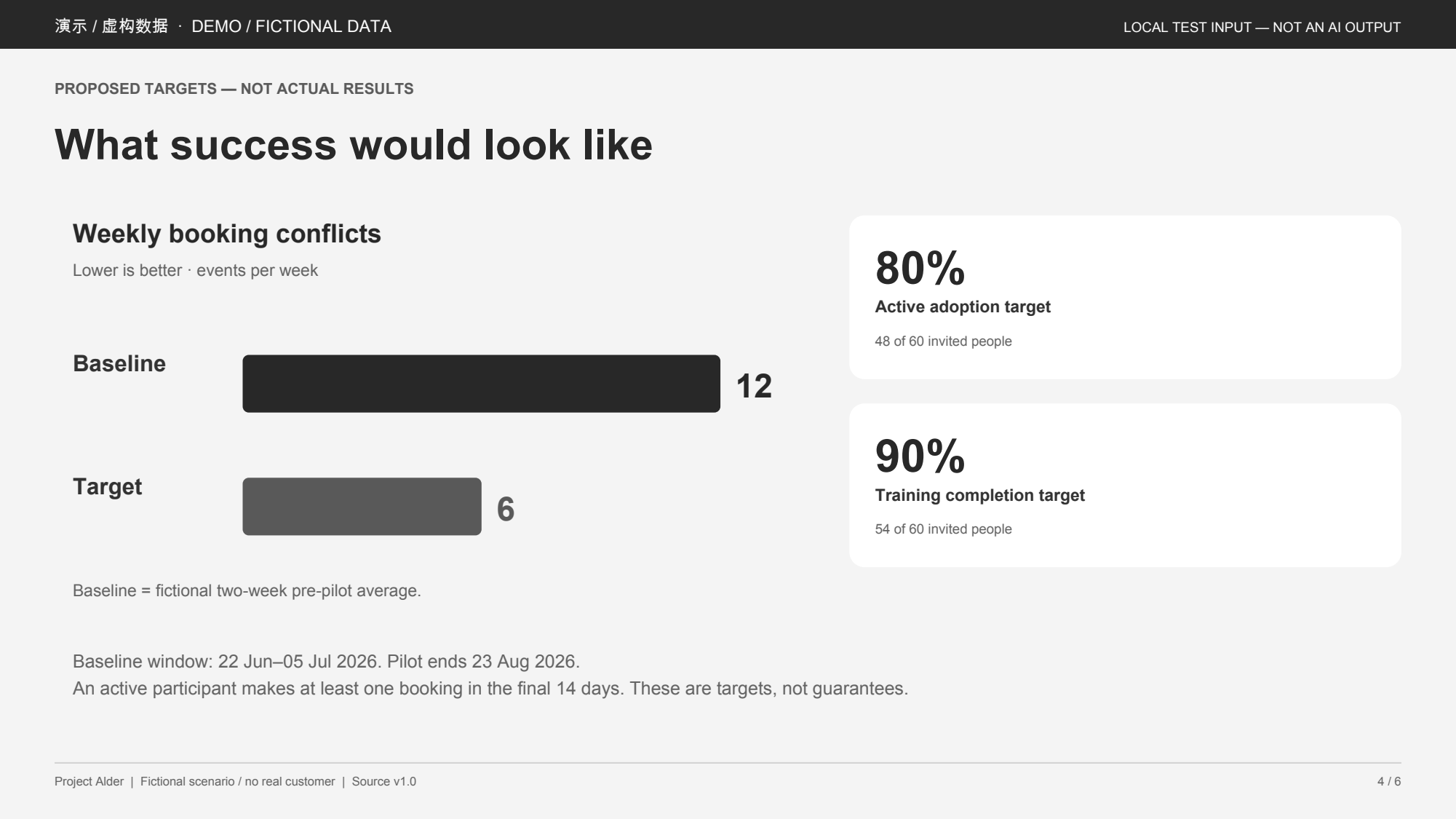
Another clear grayscale scan simulation from the same fictional proposal. Preserve the visible chart labels and the distinction between targets and actual results.

Fictional Project Alder targets: weekly conflicts from baseline 12 to target 6; adoption 80 percent and training 90 percent.
Download original image

Details to check against the image

Keep the measure and its unit
The chart shows weekly booking conflicts, measured in events per week: baseline 12, target 6.
Keep percentages with their counts
80% is 48 of 60 invited people; 90% is 54 of 60. These are proposed targets, not actual results.
Preserve the qualifying dates
The baseline window is 22 Jun–05 Jul 2026. The pilot ends 23 Aug 2026. Active participation means at least one booking in the final 14 days.

Source-based reference transcription — not a PagePop OCR result.

演示 / 虚构数据  ·  DEMO / FICTIONAL DATA
LOCAL TEST INPUT — NOT AN AI OUTPUT

PROPOSED TARGETS — NOT ACTUAL RESULTS
What success would look like

Weekly booking conflicts
Lower is better · events per week

Baseline
12

Target
6

Baseline = fictional two-week pre-pilot average.

80%
Active adoption target
48 of 60 invited people

90%
Training completion target
54 of 60 invited people

Baseline window: 22 Jun–05 Jul 2026. Pilot ends 23 Aug 2026.
An active participant makes at least one booking in the final 14 days. These are targets, not guarantees.

Project Alder  |  Fictional scenario / no real customer  |  Source v1.0
4 / 6

Original wording

Request a transcription before any rewriting or translation. Keep labels and footnotes with the text they qualify.

Numbers in context

Check units, dates, columns and exclusions. Similar-looking numbers can change the meaning of a sentence or table.

Uncertainty stays visible

Unclear text should stay marked as unclear. A plausible word or number is not evidence that it appeared in the image.

From an image to text you can review

Keep the original nearby while checking the extracted text.

  1. 01

    Add the clearest image

    Open the workspace and attach your photo, screenshot or scanned page. Keep text large enough to read and avoid cropping away footnotes.

  2. 02

    Choose text or table structure

    Ask for the visible wording as plain text or for rows and columns to stay together. Do not request a summary or translation unless you want a separate step.

  3. 03

    Compare, correct and copy

    Compare numbers, units, dates and footnotes against the original. Check any [unclear] marker before copying the text into a document.

Before you get started

Can I keep text in a table?

Ask for the same visible row and column labels, with units, totals and footnotes kept together. Review each value against the image. Do not ask the assistant to fill missing cells or infer unlabeled chart values.

What about blurry images or handwriting?

You can request a transcription, but difficult characters may be unreadable. Ask for [unclear] markers and provide a sharper image where possible. Do not treat a plausible answer as confirmation of what the image says.

Is extracting text the same as editing the image?

No. This task asks for text you can copy; it does not replace or remove words in the original picture. For a change to the picture itself, use the image editor. Edit text inside an image

Can I summarize the content afterward?

Yes. First review the transcription, then request a separate summary for your purpose. If your source is a PDF and you want its main points, use the PDF summary task. Summarize a PDF

Are these reference texts PagePop results?

No. The reference transcriptions were prepared and checked against the original fictional material outside PagePop. They show what should be preserved when reviewing an extraction; they do not demonstrate PagePop accuracy or a completed OCR test.

How do I try one of the example images?

Download the original image below its preview. Choose a starting brief, open the workspace and add the downloaded image. The brief only fills the request; it does not attach an example file automatically.

Related professional scenarios

Start with the original image

Bring a clear source, ask for the visible text and review the details before using it.

Extract image text