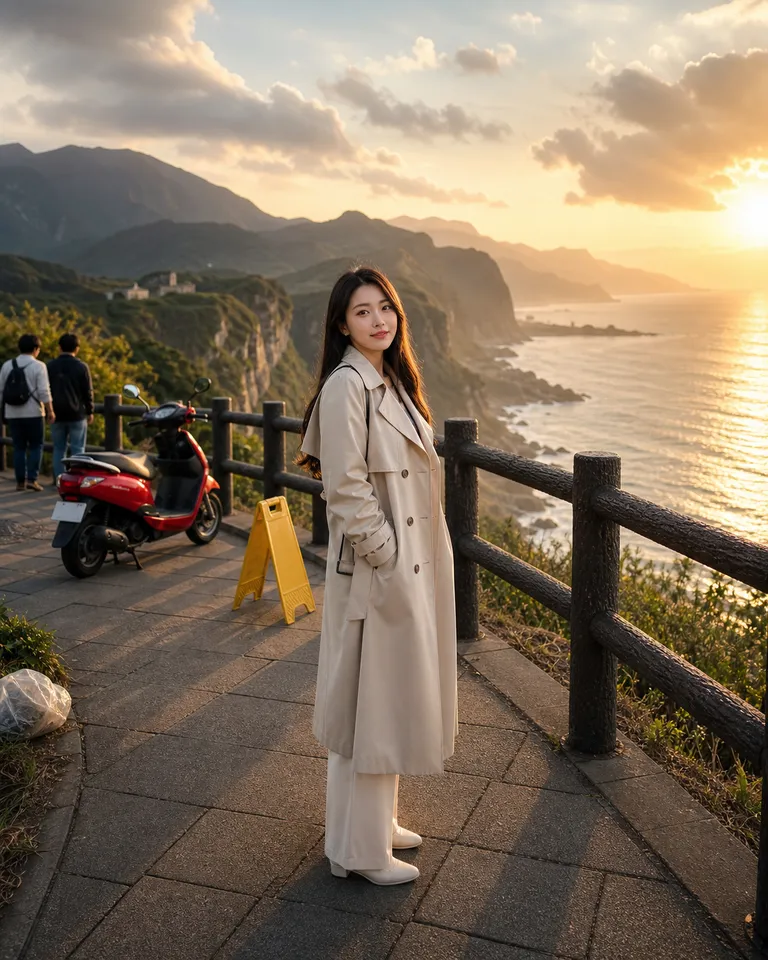
Edit text in an image, replace backgrounds, or remove objects with AI. Upload your image, describe the change, then review and refine the result.
Change a price, date, or headline in a poster or product image. Provide the current wording, its replacement, and where it appears. Ask PagePop to match the surrounding font and background, then compare the result with your original.
Use the clearest version you have. Identify the text to change and any words, people, logos, or product details to keep.
Write both versions exactly, including punctuation, currency, and units. Mark the text area in the image preview if its position is unclear.
Check every word and digit, then inspect the font, spacing, and surrounding background. Ask for a local revision in the same chat before saving.
Choose an example, replace the text in brackets with your wording, and upload your image before sending.
Read the guide to editing image text with the same font and background
Explore image edits through comparisons, from changing scenes to refining portraits.
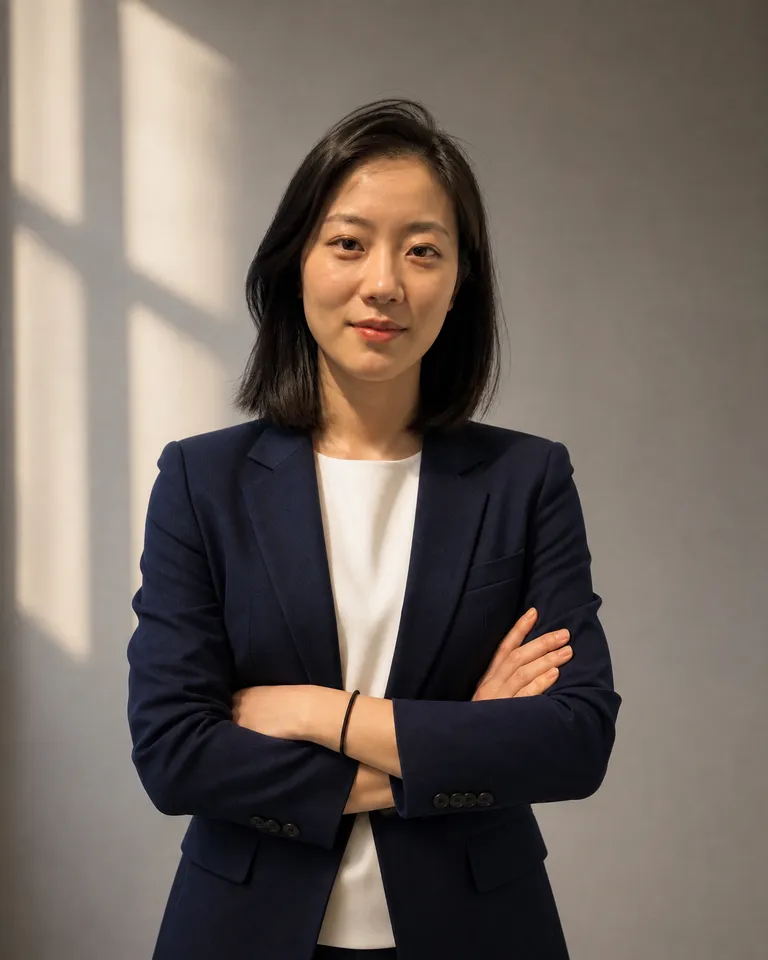
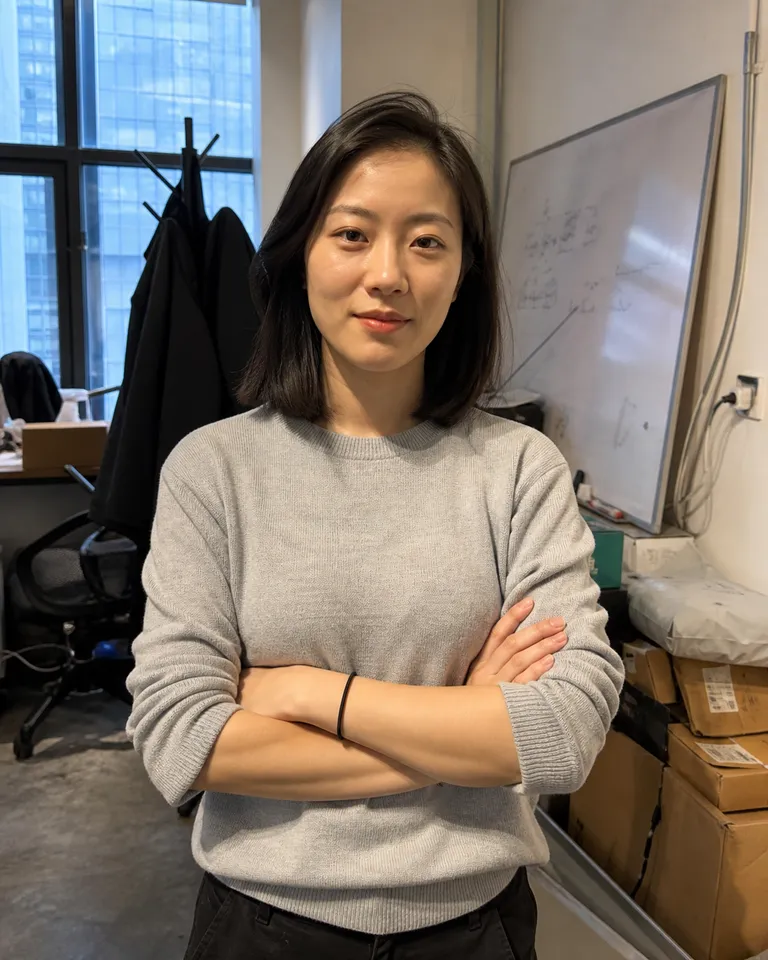
Click a spot in the image preview and send an annotation with your instructions.
Specify the people, objects and composition to retain, then describe changes to the background, style or details.
Provide the original and replacement text, then check spelling, typography and how the background blends.
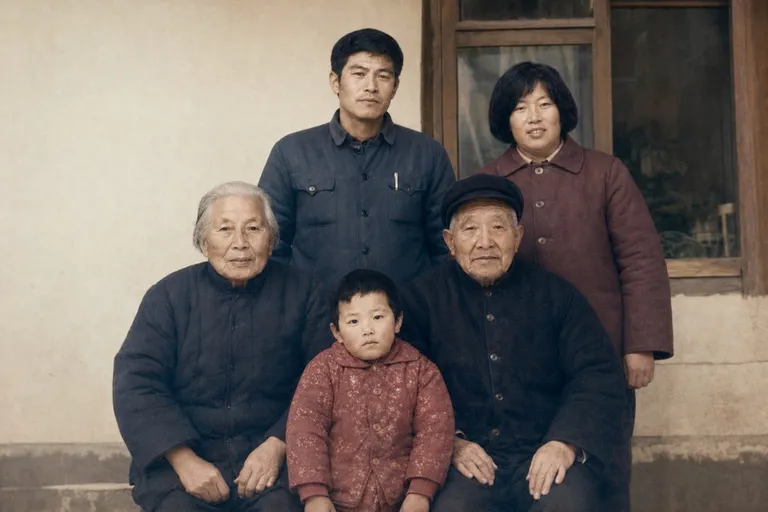
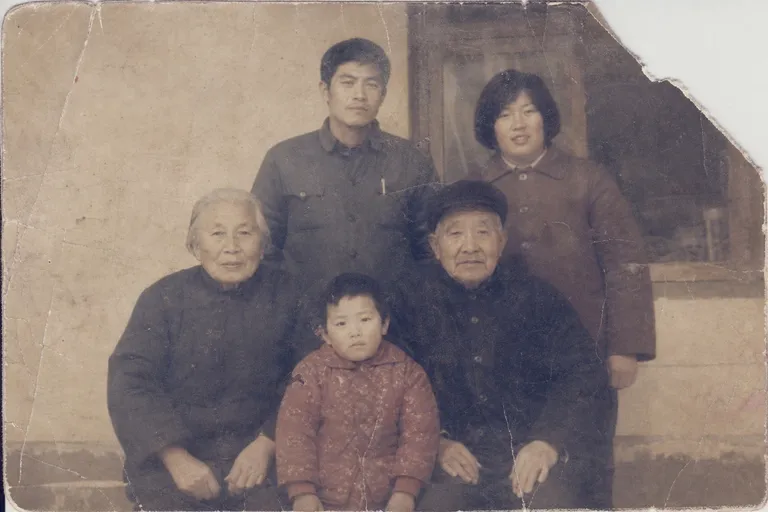
PagePop
Open the image editing assistant, upload your image, and describe what you want to change.
Click the spot in the image preview, add specific instructions, and send them along with your other changes.
Ask for further changes in the same conversation, then save your chosen result.
Upload the image, identify the text area, and provide the exact original and replacement wording. You can mark the area in the image preview. Review the result for incorrect words, missing digits, and changes outside the requested area.
Ask PagePop to match the original font, size, color, spacing, and background. When text is part of the image pixels, the background beneath it also needs to be reconstructed. Compare the result with the original; an exact match is not guaranteed.
Say whether line breaks or the width of the text block may change. Keep names, amounts, and conditions complete. Review the result at its intended display size so the new text stays readable.
Yes. Continue in the same conversation and name the word, position, or visual detail to adjust. Refer to the original image when you need to restore something that changed.
Yes. Describe the object, background, or other detail you want to change and specify what should stay. You can use a marked area to make a local edit clearer.
Usage is subject to your account plan and available credits. Check the current pricing and your balance before starting.
Add a reference image and turn its subject, composition, colors and visual style into a prompt you can copy and refine. Keep the details you like and describe what to change.
Remove text from photos, screenshots and graphics with AI. Add your image, identify the words to erase and the details to keep, then refine and save the cleaned image.
Upload a poster, screenshot or product image, choose a target language and get a translated image. Keep names, prices and key details while adapting the wording to your audience.
Upscale an image to 2×, 4×, or a target width. Upload your image, improve its resolution, refine the result, and download the enlarged version with PagePop.
Create square album, single and EP cover art from your music brief or own image. Keep artist and release names exact, refine the artwork, and check the cover at a small display size.
Pick colors from an image in your browser. Get HEX, RGB and transparency values, save selected colors, and download a color list.
Resize an image to exact pixel dimensions or a percentage. Keep its proportions, fit or crop to a frame, and download PNG, JPEG or WebP in your browser.
Turn your story, genre, title and author name into a book cover with AI. Add a reference, shape the typography, and refine the design in the same conversation.
Bring your image and make the next version with your image editing assistant.
Start editingExplore a more specific task with the same starting point.