
For your next store campaign
Shopify Banner Maker
Create banner images around your products, with room for your message in desktop and mobile compositions.
Create a banner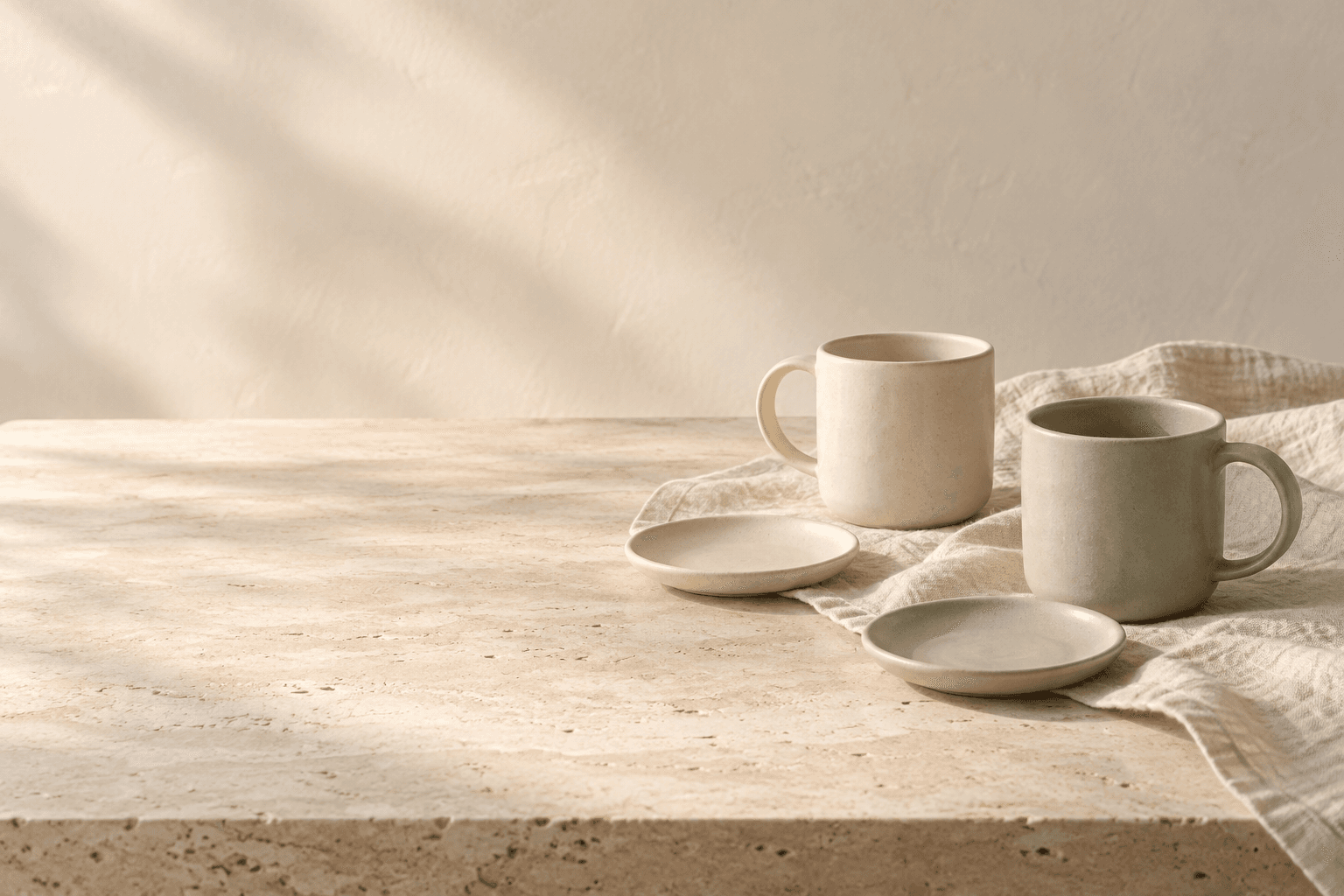
Quiet colors. Familiar shapes. A fresh start to your daily ritual.
Explore the collectionAI-generated concept images in illustrative layouts, not a live Shopify theme preview.
Make the next collection feel at home
Open the design assistant with your product references, campaign direction and intended banner placement.
- 1Share products and placement
- 2Create and review each composition
- 3Download, then preview in your theme
Not sure how your banner will crop?
Compare desktop and mobile framing, then check your theme’s image settings.
Before you get started
Does this create banner images or an announcement bar?
Use the image generator to create a banner image for a homepage, collection or campaign section. You add the image to an existing section in Shopify. Generating an image does not install an announcement bar, pop-up or interactive theme component.
What size should I use for a Shopify banner?
Start with your theme’s section requirements. A 2400 × 1000 px desktop canvas or 1200 × 1500 px mobile canvas can be a planning example, not a Shopify requirement or a promised PagePop output size. Request a suitable composition, then check the downloaded dimensions and resize the file if your theme needs a specific size.
Can I create a separate mobile banner?
You can request a separate portrait composition in PagePop. This creates another image; it does not configure your Shopify theme. Check whether your theme has a separate mobile image field. If it uses one image for both screens, preview and adjust that image’s framing in the theme.
Should my heading and button be inside the image?
For a store banner, use your theme’s heading and button fields when available. This keeps the link usable and makes the text easier to adjust for smaller screens. Leave clear space in the image where that content will appear.
Can I use my own products and brand direction?
Upload your product references and describe the palette, lighting and campaign mood. Identify the details that need to stay accurate, then compare the generated products with your references before adding the images to your store.
Does PagePop publish the banner to Shopify?
PagePop creates the banner image. Download your selected image from PagePop, then upload it manually in Shopify’s theme editor. You make and publish storefront changes in Shopify; PagePop does not publish them automatically. Check the file dimensions, text contrast and crop on desktop and mobile before saving.