How to give portraits a vintage peel-apart film look with AI
Start with a clear portrait and use PagePop to adjust skin tones, light, fine grain, and paper edges while keeping your expression. Includes a prompt and editing tips.
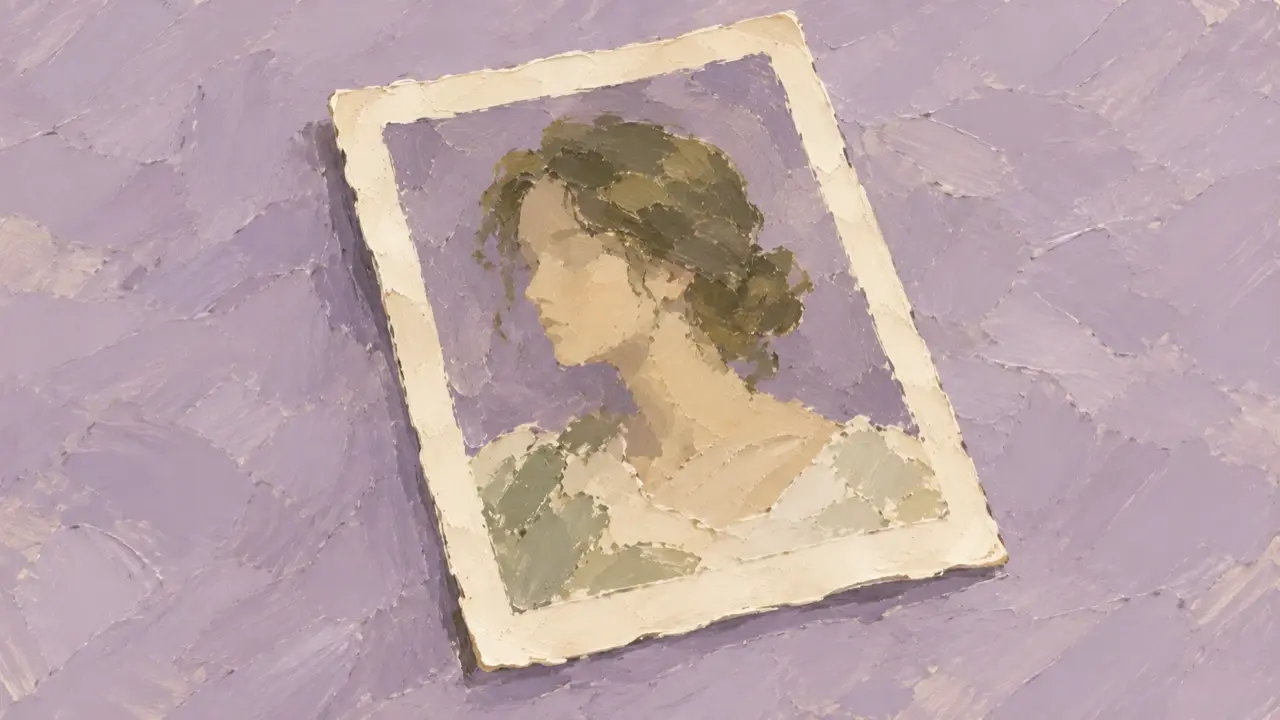
If you already have a portrait you like on your phone, you can try giving it a peel-apart instant-film look: keep your facial features and expression, then use color, light, and the paper border to create a vintage feel. The easiest ways to overdo it are smoothing the face until it looks plastic, turning the whole image yellow, and covering it with grain. The photo looks older, but the person no longer looks like you.
Start this digital effect with the original photo. Get the portrait itself right before adding the paper border; that makes the changes easier to judge.
Choose a photo with a clear face and a visible light direction
A waist-up or head-and-shoulders portrait is a good place to start. The face shouldn’t be too small, and the eyes, hairline, and corners of the mouth should be visible. A pale wall, a window setting, or a simple indoor background gives the skin tones and clothing room to stand out.
If the photo is already blurry or bangs completely cover the eyes, adding more soft light will obscure even more identifying features. Choose a sharper original instead of asking AI to reconstruct the face, change the outfit and background, and add a film look all at once.
There’s no need to put the person in a period costume, either. A white shirt, knitwear, or everyday clothes work well. The natural expression and existing folds in the clothing are worth keeping.
Decide what kind of print you want
For a clearer, more delicate look, try fairly neutral skin tones, soft highlights, and slightly cool shadows. For a warm indoor feel, give the background a creamy white tone while keeping the skin natural, rather than turning the entire face orange.
Grain and borders are supporting details. First check whether the face still feels expressive at a small size, then inspect the texture in the larger image. Fine grain that only becomes noticeable when you zoom in usually suits portraits better than coarse noise across the whole frame.
The paper border can be slightly irregular, but every corner doesn’t need to look torn. The goal is a digital photo with a peel-apart film look. Adding a jagged white edge alone can make it look more like a scrapbook sticker.
Upload the original and describe what to preserve and what to change
To adjust the photo’s style with AI, you can give the original to PagePop’s photo transformation assistant and describe the personal features to keep and the look you want to change. Here’s an example prompt you can adapt to your photo:
Give my uploaded waist-up portrait a vintage peel-apart instant-film look.
Preserve the person’s original facial features, face shape, hairstyle, expression, pose, and clothing. Do not replace the face or change the outfit.
Keep the original background, only reducing distracting details slightly. Do not add a new setting or props.
Keep skin tones natural and highlights soft but detailed. Add a slight cool-gray tone to the shadows, and do not turn the hair into a solid black area.
Add very subtle fine grain. Preserve natural skin and fabric texture without heavy skin smoothing.
Edit only the photo itself for now. Do not add text, a date, a signature, or a paper border.
If the original lighting is already warm, replace “add a slight cool-gray tone to the shadows” with “keep the original warm light and reduce any excessive yellow cast.” A daytime outdoor photo doesn’t need to become a direct-flash night shot, either. Working with the existing light makes it easier to preserve the expression of that moment.
Add the paper border once the face still looks like you
Compare the result with the original, checking the eye positions, sides of the nose, corners of the mouth, and facial outline. Once you like this version, ask for the border:
Keep the content and colors of this version. Add a thin, creamy white photo-paper border on all sides, with slight natural irregularities. Do not crop the top of the head or any fingers. Do not add tape, clips, text, or aged stains.
The border goes around the outside of the photo; it shouldn’t make the person narrower or squashed. For a profile picture, a circular crop will often remove most of the border, so keep a borderless version too. Use the complete print-style version for a single social post or a portrait collection.
Describe the specific problem you want to fix
The person has a different face. Attach the original again and point out what is wrong with the eye shape, jawline, or mouth. Ask to restore those features first and reduce the styling for now. Don’t keep adding effects to a face that has already drifted from the original.
The face is too pale and flat. Try “lower the brightness on the cheeks and forehead, restore the light and shade on both sides of the nose, and keep the catchlights in the eyes.” This explains what you want to retain more clearly than “don’t overexpose it.”
The photo looks dirty. Remove large scratches and stains first, then reduce the grain. Color and gentle tonal transitions can create a vintage feel without added damage.
The border draws too much attention. Make it narrower and soften its texture so the face remains the first thing you notice. If the paper border takes up too much space, the person will look distant when the image is displayed small.
Finally, compare the original and the result at the same size: does the person still look like you, do the skin tones feel natural, and have the hair or hands been altered badly? Save the description of the color treatment you like and reuse it for the next photo. For a series, see how to keep a consistent style across images.