
AI invitation maker
Make a digital invitation with PagePop. Enter the date, venue, and style you want, then ask AI to refine the design in the same chat.
What invitations can you make with AI?
Create a digital invitation with the event details and, if needed, instructions for guests to RSVP.
- Weddings, birthdays, and anniversaries
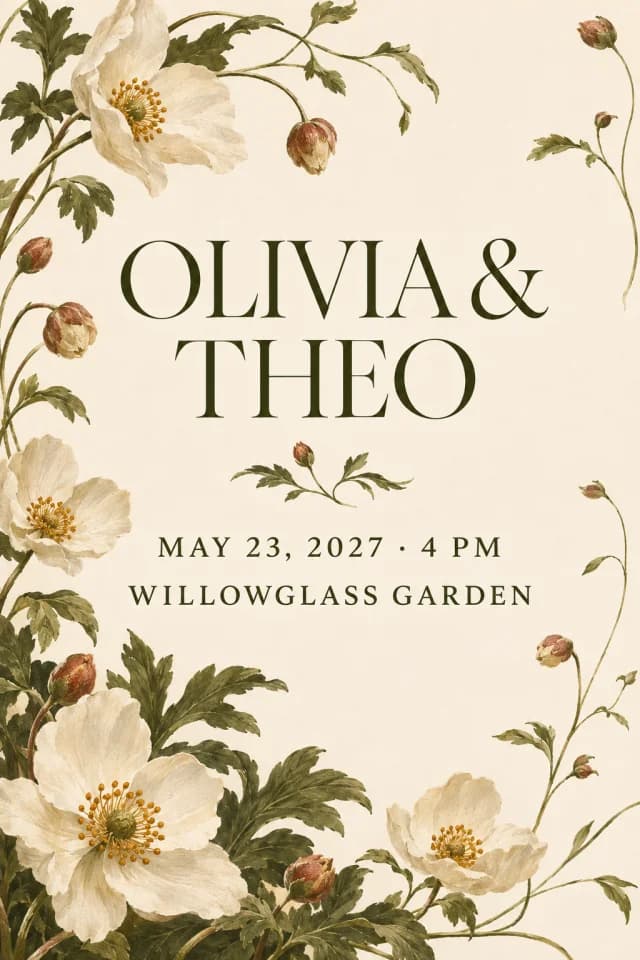
- Make a wedding invitation with the couple’s names or a birthday invitation with the party theme and start time.
- Business and brand events
- Design invitations for product launches, conferences, or annual dinners. Include a company logo, an agenda, or arrival instructions.
- Community and school events
- Create invitations for workshops, reunions, and school events. Tell guests where to meet and what to bring.
Invitation design examples


How to make an invitation with AI
Create an invitation in PagePop, refine the draft, and download it when it’s ready to send.
Describe your event
Enter the occasion, names, date, time, venue, and style. To use a photo or logo, click “Add material” to open the chat with your draft.
Generate and refine the design
Click “Generate invitation” here, or send your draft in the chat after uploading your files. Preview the design and ask for changes in the same chat.
Check and download
Verify the names, date, and venue, then download the image from the result. Send it to your guests using your preferred channel.
Why use PagePop to make invitations?
Start with the details you already have, add your own visuals, and refine the design through conversation.
Start with a description
PagePop uses your event details and style preferences to create a design from scratch.
Use your own photos or logo
Add a couple’s photo, a brand logo, or a reference image to guide the design.
Make precise changes in the same chat
Ask PagePop to move the start time, replace a line of text, or adjust the layout. Specify which details and design elements to keep.
Explore real PagePop examples
Browse the PagePop case library to see finished designs and the sample prompts behind them. Use them as a starting point for your own request.
Convert an invitation image to GIF
Attach a still invitation image and describe how it should move. PagePop turns the image directly into a GIF you can download and share.
Create a video invitation with music
Use your design as a reference for a short video. Ask for background music that matches the mood and specify which event details should stay visible.
Invitation maker FAQ
Can I print an invitation made with PagePop?
Specify the intended print size when you describe the invitation. Check the size and legibility of the downloaded image before printing.
How do I send my digital invitation?
Download the finished image, then send it by email or in your preferred messaging app.
How do I add instructions for guests to RSVP?
Include the response method and deadline in your request. If you already have a QR code, upload it as a reference and test the code in the finished design.
Can I use my own photos or logo?
Yes. Add your files with “Add material” and tell PagePop where you want them placed.
Can I try different invitation styles?
Yes. Describe the style you want in your request, such as a floral wedding card or a minimalist conference invitation. You can ask for another style in the same chat.
How do I change the text on an invitation?
In the same chat, paste the exact wording you want and say what to keep. Check the new version before downloading.
Create your invitation
Enter your event details and the style you want to generate a design you can share.
Generate invitation