How to remove people from travel photos while preserving your subject and scenery
Start with the most distracting person, define what to preserve, then check paving joints, railings, shadows, and landmark details. Includes reusable PagePop editing prompts.
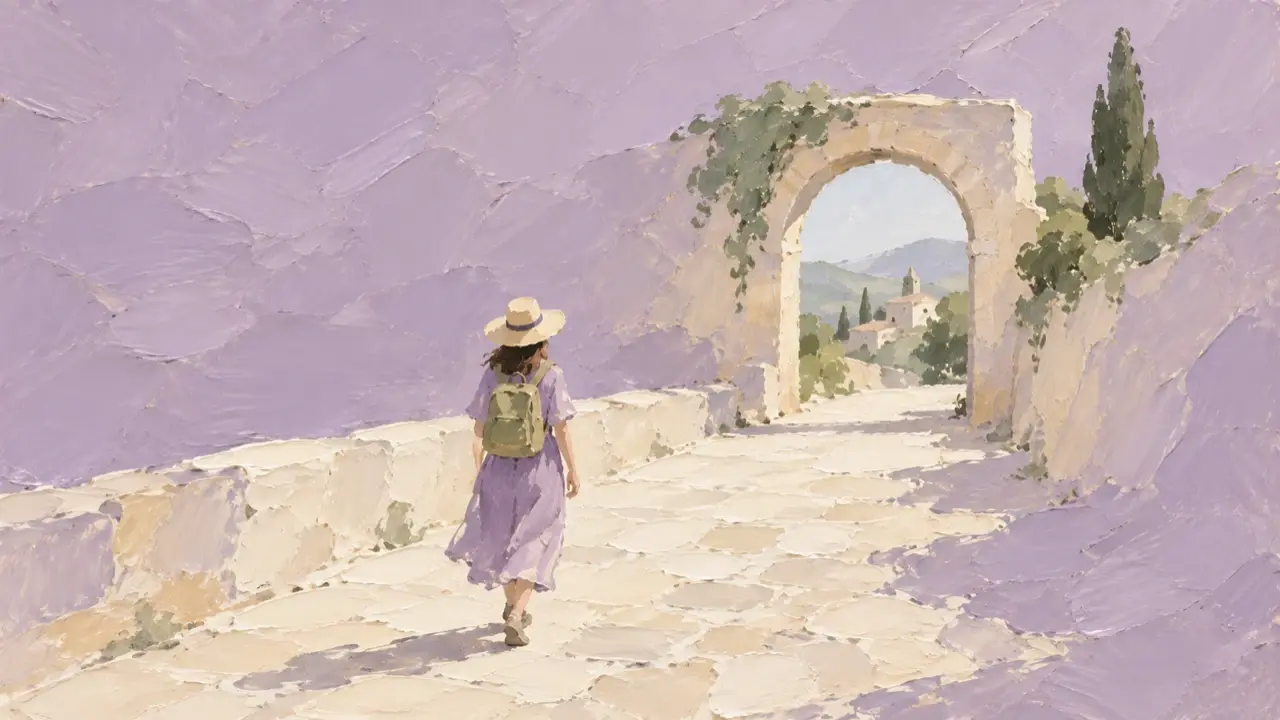
If there are people in your travel photo, start by picking out the one or two who really draw attention away from the subject, then ask AI to edit those areas. People walking in the distance or tourists sitting along the street can help convey the scale of the scene and the vacation atmosphere. You don’t have to remove everyone.
To preserve the original scenery, separate two things: buildings, trees, and pavement that are already visible should stay as they are wherever possible; areas hidden behind people need newly generated pixels. A natural-looking fill does not mean the resulting doors, windows, signs, or steps match what was actually there.
Start where the surrounding area gives you useful clues
Look through the photos you took in quick succession at the same spot. Choose one where your subject’s expression, hands, and clothing are all intact. If another shot already shows the building unobstructed, switching photos is usually easier than repairing one. Keep the original, then choose the version you want to edit.
Start with someone near the edge of the frame who doesn’t overlap your main subject. For example, if a person is standing on a stone-paved path and you can see the path’s direction on both sides, the surrounding texture and perspective give you something to compare the fill against. If that person is in front of your arm or covers an entire shop sign, judging the reconstructed area becomes much harder.
There are two other situations where people may be worth keeping: a distant crowd gives a sense of scale to a wide-open square, and someone standing at a stall helps explain what is happening there. Removing people can simply make the main subject clearer; it doesn’t have to turn a lively street into a ghost town.
Tell PagePop both who to remove and what to keep
To remove people from a specific area, you can use PagePop’s image editing assistant. Upload your photo, then describe where to make the change and what to preserve. Describe positions using the left and right sides of the image, and add clothing colors and nearby objects. Avoid only saying “remove the people in the background.”
The example below is for a travel photo with a distracting person on the left and a central person you want to keep. Change the clothing and positions to match your photo before sending it:
Please edit this travel photo. Remove only the person in the red top standing on the stone-paved path on the left side of the image.
Preserve the facial features, hairstyle, pose, body proportions, hands, and clothing of the person in the white jacket in the center.
Keep the distant crowd, shops on the right, trees, railings, and sky. Do not replace the background.
Fill the removed area only by continuing the surrounding visible stone paving. Preserve the direction, width, and perspective of the joints between the stones.
Edit only this person’s shadow on the ground. Keep the shadows of the main subject, trees, and buildings.
Do not add doors, windows, signs, plants, or decorations. Do not change the overall colors, composition, or aspect ratio.
Complete this one edit first.
These instructions suit a photo where the area behind the person is mostly pavement. If they are blocking a building entrance, don’t copy the instruction to fill it with stone paving. First check whether enough of the entrance’s structure is still visible. If key details are completely hidden, leave that area alone, choose another original photo, or crop out the distraction at the edge of the frame.
Check the subject first, then follow the lines in the background
When the result is ready, display the original and edited versions at the same size and compare the areas you wanted to leave unchanged. Have the central person’s fingers, backpack straps, or clothing edges changed? Were the letters on a shop sign, the number of doors and windows, or weathered marks on a wall redrawn too? If the person is gone but these details have also changed, the edit hasn’t met your requirements yet.
Next, inspect the removed area. With stone paving, don’t just check whether the colors match. Start with a joint outside the edited area and follow it to see whether it continues naturally through the repair. Do the same with railings: does a horizontal rail suddenly bend, or do the vertical bars become closer together where the person used to be? Large areas of similar texture can hide problems in a thumbnail; zooming in reveals the seams.
Judge shadows and reflections separately. An obvious human-shaped shadow left on the ground gives away the edit. But removing tree shade or the contact shadow beneath your subject’s feet while cleaning it up disrupts the scene’s original lighting. Reflections in glass are especially easy to confuse with items inside a shop. If you can’t tell what a reflection belongs to, leaving one area untouched is safer than expanding the removal.
In the next round, address only the problem you just noticed
PagePop lets you continue editing in the chat. Once you’ve checked the first change, deal with distractions on the other side. Avoid combining sky replacement, skin retouching, color adjustments, and large-scale people removal in one round, or it will be hard to tell which step changed the original.
For example, if the person is gone but two newly filled paving joints run in the wrong direction, you can follow up with:
The central person and buildings are preserved well in this version.
Please correct only the joints between the paving stones in the lower-left area where the person in red used to be:
Continue the direction and width of the original joints on both sides of that area, narrowing them gradually into the distance with the perspective.
Keep the current light, shadows, and pavement color. Do not edit the people, shops, railings, or any other areas.
If part of the subject’s outline has been cut away or the lettering on a sign has changed, attach the original again, point out the details to preserve, and restart with a smaller area. Repeatedly editing a result that has already drifted from the original can make later changes build on incorrect details.
“Looks real” cannot verify scenery that was hidden
If a tourist blocks half a window, AI may fill in a plausibly shaped window. If several people cover the base of a building, it may produce what looks like a complete set of steps. That one photo alone cannot establish what those structures originally looked like. If your travel record needs to show a landmark accurately, don’t treat this kind of fill as a faithful reconstruction.
Finally, view the image on your phone at the size you’ll actually share it. Check whether the subject is clearer and whether the street still has the atmosphere you remember. Removing just one person close to the camera, while leaving people walking in the distance, may be enough. Save the original and your preferred edit separately. If the image includes substantial generative filling, mention the AI editing in the caption too.